

Where you can view Tasks
Run tab
The Agent and Workforce builders each have a Run tab showing that Agent or Workforce’s Tasks, where you can also start new ones.
Tasks page
Every Task across all your Agents and Workforces in one list, for monitoring and acting in bulk.
What’s inside a Task
A Task is made up of the messages exchanged, the steps the Agent took, and the details of the run. The most common place to see all of it is the Run tab, where you interact with an Agent inside the Agent builder. The same Task can also open through an embed or in Relevance Chat.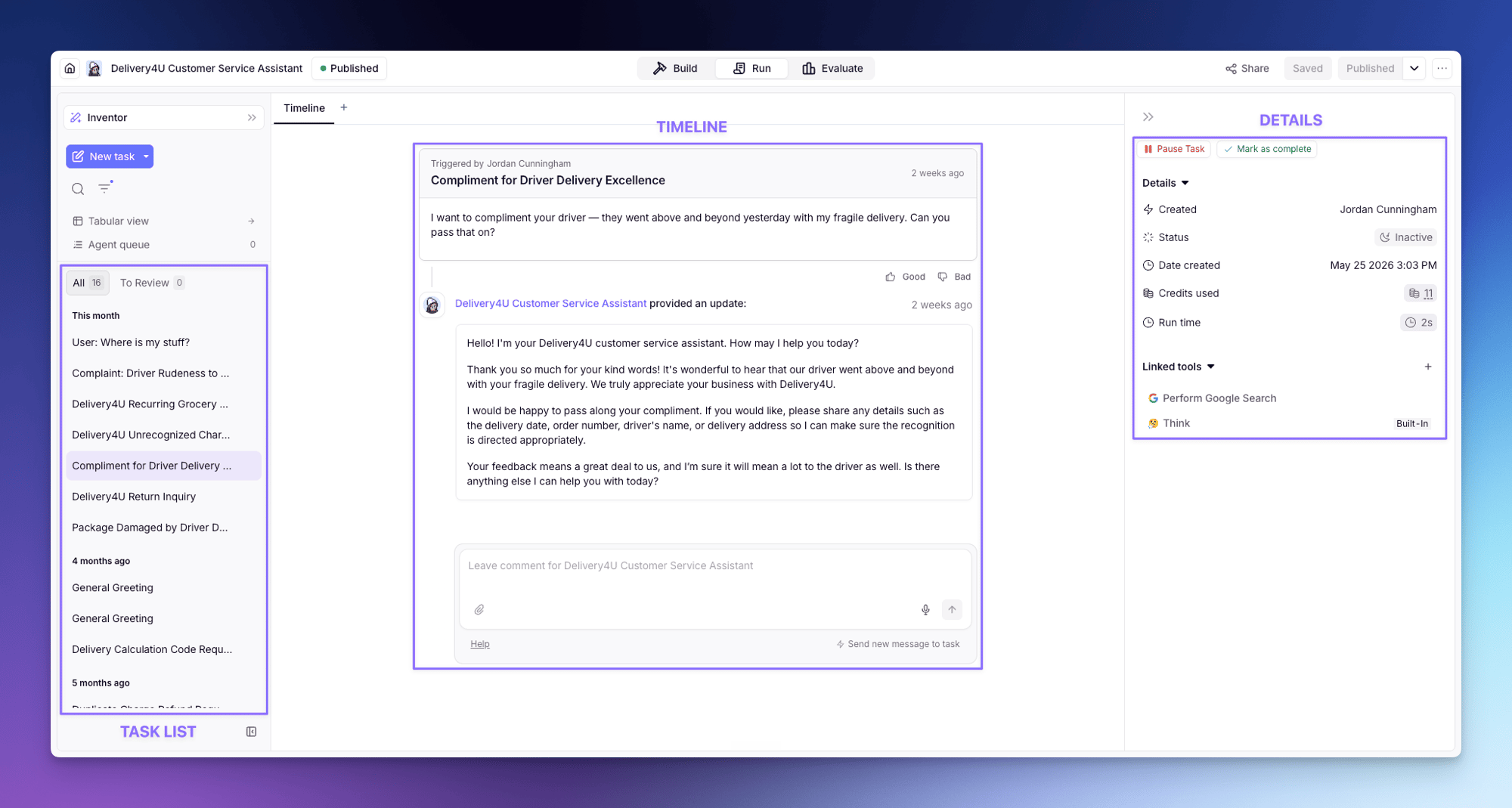
Task list
The left side lists every conversation for the Agent, grouped by recency, with All and To Review tabs, search and filters, a Tabular view, and the Agent queue. Start a fresh one with New task.Timeline
The center shows the Task thread (the messages exchanged and the Tool runs), with a comment box at the bottom to message the Task directly.Details
The right side has Pause Task and Mark as complete, plus the Task’s Created by, Status, Date created, Credits used, Run time, and Linked tools.Filtering Tasks
The Task list has a filter builder for narrowing down to exactly the Tasks you need. You can filter by:- Status — Task state like Running, Completed, Paused, or Timed out
- Agent — Tasks from a specific Agent
- Tool usage — which Tools the Task used
- Errors — failure type: Agent has errored (the Agent itself stopped on an error) or Has active tool failures (a Tool failed mid-run, even if the Agent kept going)
- Metadata, date, and more — custom fields, time range, who triggered the Task, and other conditions
Grouped view by agent
Tasks can be grouped By Agent to see an agent-level summary in the task monitoring interface. When this grouping is active, each row in the list represents one Agent. To drill into an Agent’s individual Tasks, click the expand arrow on that Agent’s row. A nested table opens showing up to 25 of that Agent’s Tasks. If there are more, click Show more to load the next page using cursor-based pagination.- Clicking any Task row in the expanded list opens the task detail drawer.
- All active filters and search terms apply to the nested task list, so the Tasks shown reflect your current filter context.